A short walkthrough of creating a post from video upload to publication, including editing, customization, and sharing options.
Creating a new post starts with a simple but important step: making sure you're in the right place. Head to the top left corner and select the channel you want to post to if you manage multiple channels. Once you've confirmed your destination, hit the New Post button to get started.
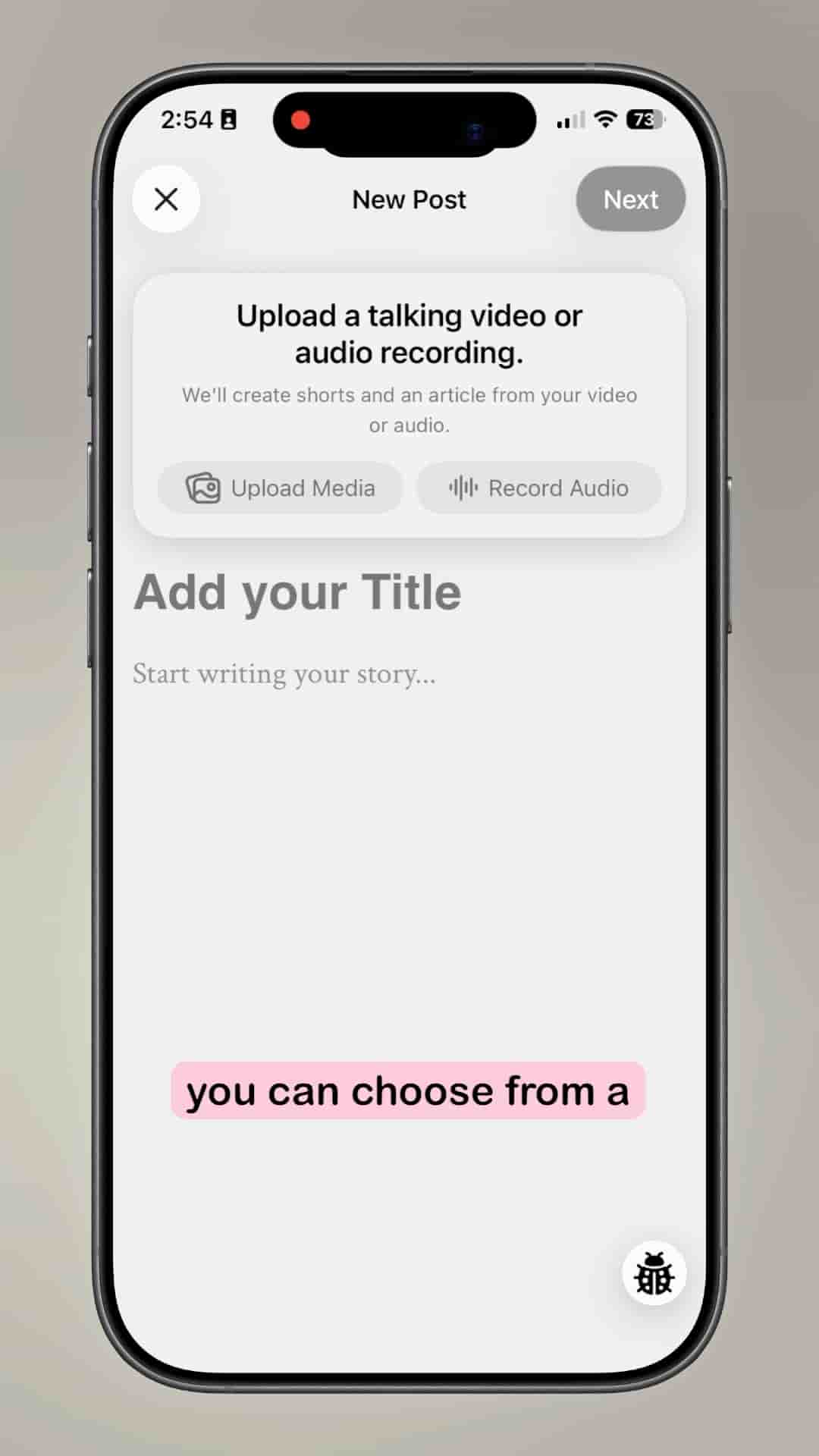
You'll land on a view that presents several options for how you want to create your content. Record Audio lets you either start a fresh audio-only recording or pull from something you've recorded previously. If you're the type who knows exactly what you want to say and prefers typing, you can skip the media altogether and type your article directly into the text box. But for this walkthrough, we're going with Upload Media and starting from a video.
After selecting your video file, take a moment to confirm it's the right one before hitting the check mark in the top right corner. This simple verification step can save you from accidentally processing the wrong content.
Next comes the processing phase. Depending on your video's size, this might take a little while. The system needs to convert your video into the right format and generate an article draft for your post. If you're curious about what's happening behind the scenes, you can check out the detailed steps outlined with progress indicators. It's usually not too long of a wait, but there's real work happening to help you create your article.
Once processing wraps up, your article will appear on screen. Scroll through it to see if it captures what you wanted to say. The beauty here is that you can edit it directly if anything needs tweaking. There's also a play button at the top if you want to review the media itself.
This review screen (or summary step, as it's called) is where you have the most control over your post. In the top right corner, you'll find a preview button that shows exactly what your article will look like to readers. It's worth clicking through to make sure everything appears the way you envision.
You can edit the description directly. This is something that we generally come up with for you, but if you don't like it, you can change it.
Choosing the right thumbnail can make a big difference in how people engage with your post. The system provides some suggestions to get you started, but you also have the option to pick a specific frame from your video. Just scrub to the frame you want, choose thumbnail, and confirm in the top right. It's a quick way to make sure your post leads with the most compelling visual.
There are a few helpful tools available before you commit to publishing. You can copy a hidden link if you want to share a preview with someone privately. There's also an option to send yourself a test email, which shows exactly what subscribers will see in their inbox. It's a smart move to check this before going live.
The settings at the bottom let you confirm which channel you're posting to (one last chance to make sure you're in the right place). You can toggle whether this will be a subscribers-only post and decide if you want to email your subscribers about it. Keep in mind, you can only send that email notification once, so make sure everything is ready before you hit publish.
When you're satisfied with everything, go ahead and publish. You'll be taken directly to your live article. And just like that, your post is out in the world, ready for your audience to discover.