Detail now supports recording directly to external SSDs, solving storage issues for iPhone creators without buying expensive high-capacity devices.
I'm Frank from Detail, and I'm genuinely excited to share something that I think is going to solve one of the biggest pain points for mobile creators: external storage support. We can now record directly to your SSD.
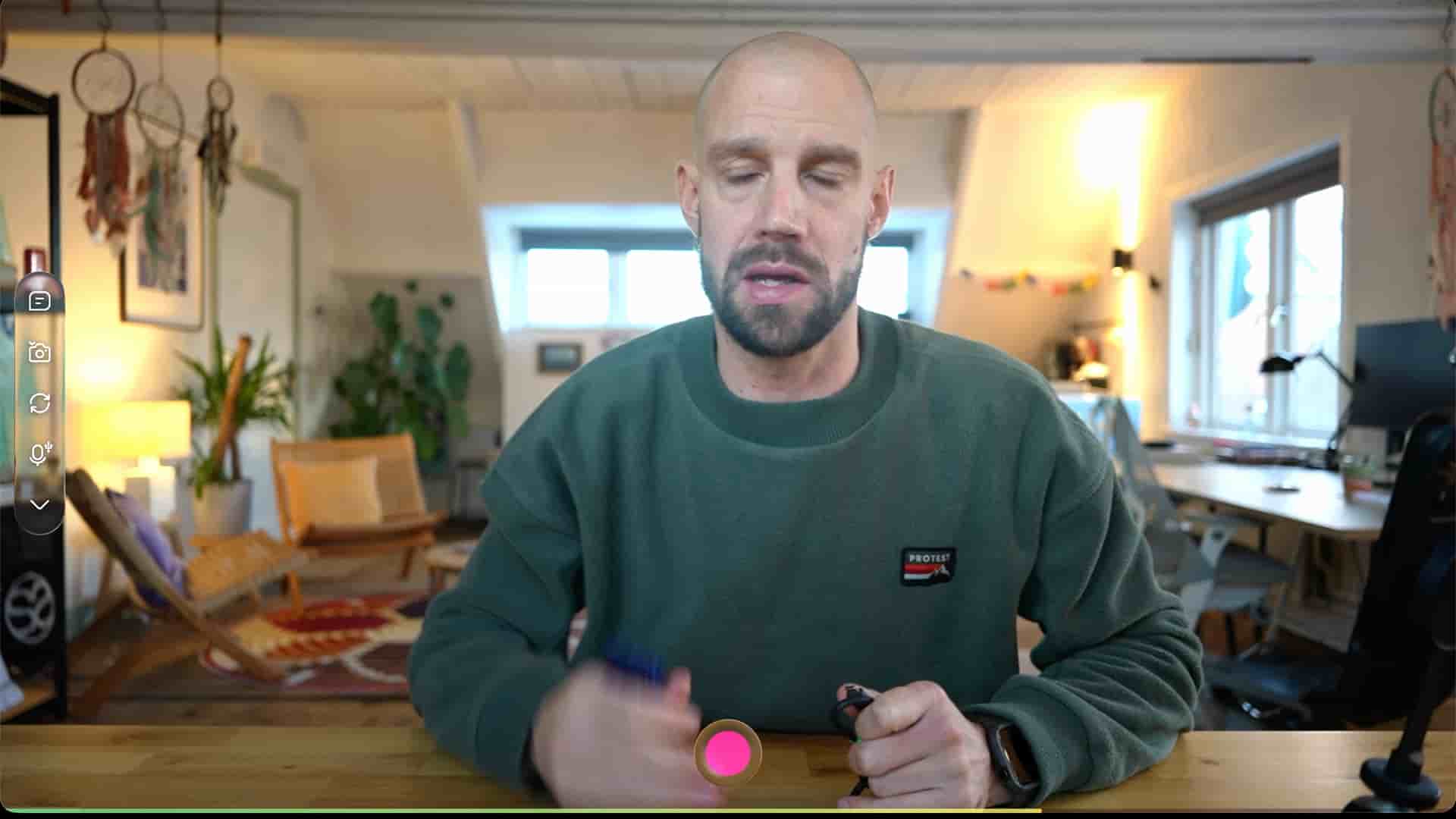
I'm holding a Samsung T9 two-terabyte drive here, and honestly, I don't think there are many users crazy enough to buy a two-terabyte iPhone. Those things are super expensive. My iPhone is always running out of space because I record a lot. I've been uploading to iCloud, which helps, but that storage isn't free either. Now you can record directly to your Samsung or any SSD out there, and there are actually some pretty cool rigs that let you mount your SSD on the back of your phone and even power your phone at the same time. The long recording issue, the storage issue—hopefully this new update solves it.
The only requirement is an iPhone or iPad that supports USB-C. As always, I'm recording on my iPad and iPhone, so let me walk you through exactly how this works.
First things first: please be cautious when recording to your SSD. You don't want the connection to drop because your recording might get completely messed up. This is something you really need to factor in if you're doing a long recording session. You really don't want this SSD to disconnect. But I do think it's a really awesome feature, so let me show you how to set it up.
Connect your SSD—the LEDs will start flashing. Then you're going to go into the library, tap on settings, and under storage you'll see an option for external drive. I already made a folder because I was testing this a few times.
Here's what I recommend: create organized folders. I like to tie things up nicely—I don't want my SSD just dropping files on the root. So let's say I want to make a "2026 video" folder. I'll open that folder, and you'll see that the default recording space is now set to SSD only, specifically to that 2026 video folder. Then you can start a new project and begin recording.
Please be mindful that if this thing disconnects, your recording might be lost. Mount it. Make sure the SSD is not going anywhere. Be sure it's stable because if your recording fails, that would be a shame.
The cool thing about recording on an SSD is that when your files get bigger, you can easily transfer them. You don't need to upload them anywhere. Even with a slower internet connection, you can still hand over the files to somebody else to edit them. Or maybe you want to record on your iPhone but edit on your iPad—that's all possible now.
What about those older projects already on your iPhone? The ones you don't want to upload to iCloud because maybe your iCloud is full, or your iPhone storage is running low. How can you offload them?
In the library, long press on any project and hit select. There's a new menu on the bottom with options to move files to iCloud or to your SSD. If you tap the iCloud button, it'll ask if you're sure you want to move this project to your iCloud. For a small project with a reasonably fast internet connection, it takes maybe a couple of seconds to two minutes.
Once the project is uploaded to iCloud, you can long press it again, hit select, and you'll see it's now in iCloud. Then you can move it back to the SSD or external storage. It downloads and places it on the SSD, which basically frees up space in your valuable iCloud storage or on your iPhone. This is a really nice way to select multiple projects and then move them to an SSD.
I think this is super handy, especially for those longer podcast recordings. When you offload your project from iCloud to the SSD, you can see a small icon at the bottom that indicates it's already been downloaded and offloaded to the SSD. It's a super neat feature just to keep things tidy and organized.
If you have any questions about using external storage with Detail, drop a comment. Happy creating, and I'll catch you on the next one.